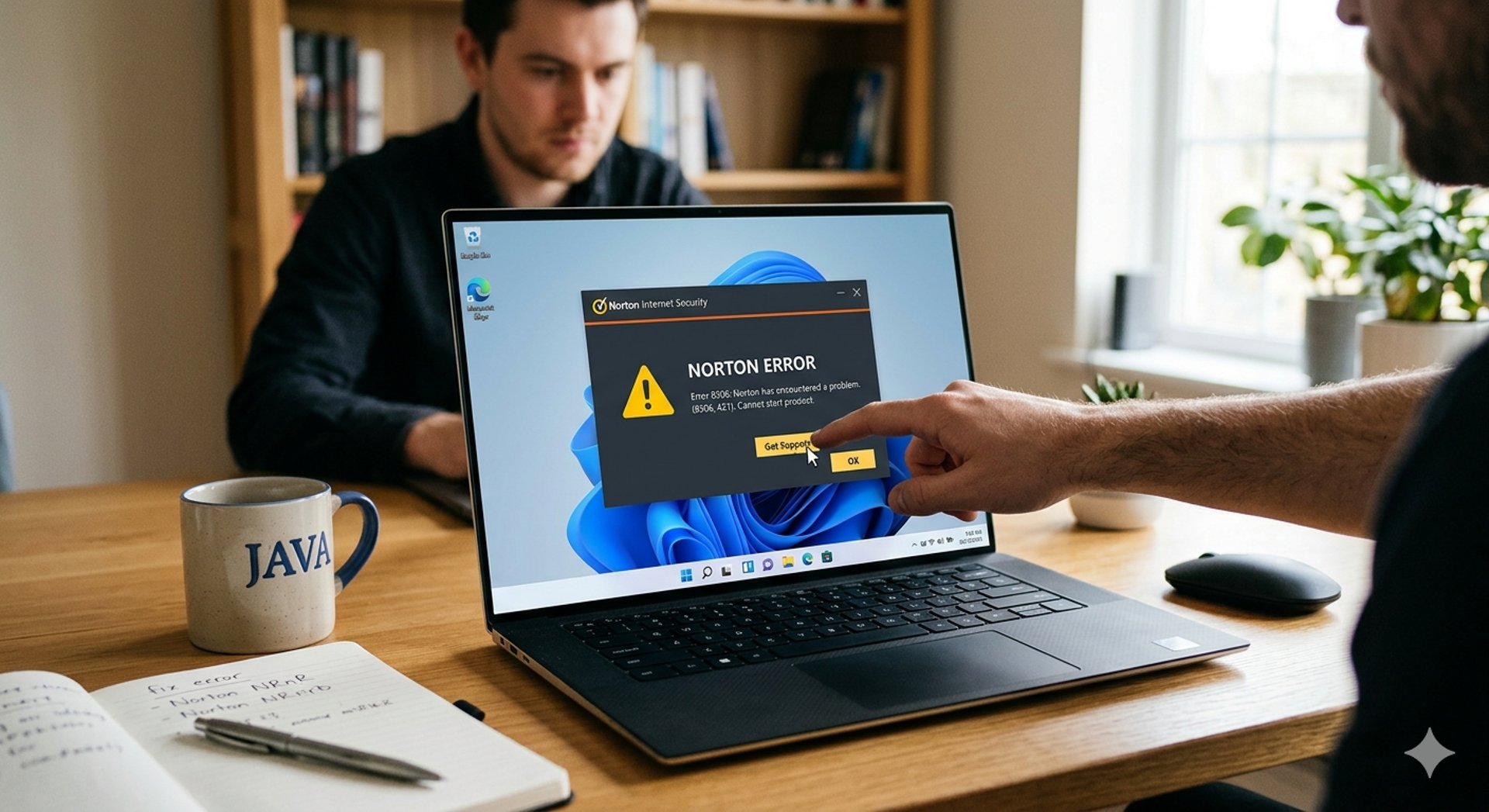
How to Fix Norton Internet Security Error 8506 (2026 Guide)
Facing Norton Error 8506, 421 on Windows? Learn 3 simple, proven steps to fix this startup crash, run Autofix, and get your internet security working instantly.
Why is Norton Showing Error 8506, 421?
Seeing the Norton Error 8506, 421 pop up on your Windows desktop can be frustrating, especially when the main security interface refuses to open. This specific error indicates a start-up failure—essentially, the core Norton security service failed to initialize properly when your computer booted up.
This usually happens due to:
. An interrupted or incomplete background software update.
. Deep system file conflicts with another security tool (like Windows Defender or old antivirus leftovers).
. Corrupted registry entry components or graphic driver stalls.
Fortunately, you can clear this error yourself using three proven, sequential troubleshooting methods.
Method 1: The Full System Power Cycle
Because Error 8506 is tied to system memory allocation and background services, a standard restart often clears the stuck process.
1. Close all active applications on your desktop.
2. Click the Windows Start menu, select Power, and click Restart
3. Once your computer reboots, wait 60 seconds and attempt to open your Norton interface again. If the Autofix prompt appears, let it run to completion.
Method 2: Use the Built-In Norton Autofix Utility
If your software opens slightly but throws the error during scans, you can force Norton to diagnose itself.
. Open the main Norton application window.
Look at the top right corner and click on Help.
From the dropdown menu, select Get Support.
The automated Norton Autofix tool will launch immediately. It will scan your installation files, fix missing service dependencies, and notify you if it resolved the conflict.
Method 3: Run the Official Norton Remove and Reinstall Tool
If Methods 1 and 2 fail, some core files are likely corrupted. The cleanest solution is to completely wipe the broken installation and download a fresh copy.
Download the official Norton Remove and Reinstall tool (NRnR) directly from the official Norton support directory.
Save the file to your desktop and double-click the NRnR icon to open it.
Accept the license agreement, click on Advanced Options, and select Remove & Reinstall.
Click Continue and let the tool remove the corrupted files.
Restart your PC when prompted. Once Windows loads back up, the installer will automatically launch to download a pristine, updated version of your Norton subscription.
Need Regional Setup or License Assistance?
System errors can sometimes be compounded by account sync issues or localized regional settings. If you have followed these steps and are still experiencing issues with your security suite activation, you can check our step-by-step local validation instructions here: contact Norton support Estonia to ensure your regional subscription is running optimally.